Cyber Security Tip & Tricks
Showing posts with label software. Show all posts

Sunday, June 9, 2013

Dashlane Password Manager having Two-Factor Authentication


It is a fact that there's no way we can keep up separate and secure passwords for all our logins spread all over the Internet. Writing them all down on post-it notes is not a very good solution. 
Password Manager is the solution in front of us and there are certain key features we have to check before going for a Password Manager software. Check for encryption standards, authentication, secure password generation and smart autofill (a must while using on the small screen of a phone).


Dashlane, is one of the password managers who is having all the above features.  Now its took the wraps off of a major update, including two-factor authentication via Google Authenticator, a completely overhauled interface for all apps, and a wizard to help new users boost their security.  The free version of Dashlane works really well. Even the free desktop version (Windows and Mac OS) has plenty of features and configurable plug-ins for Chrome, Firefox and Safari. The app and the desktop program do everything you'd want or need from a password utility, all for free.  Premium version of Dashlane is also there for $20 a year and you can have unlimited devices synchronized through the service (the free version limits you to one mobile device). Give Dashlane a try and I'll sure that you find it suits for your needs.  Download: Dashlane Password Manager (Free).  

  • Dashlane recently introduced their brand new browser extension, complete with a customized password generator! (Currently available on Chrome, Firefox and Safari)
  • New Features: Find and launch your logins, customize your randomly generated passwords, auto-fill them in a single click, and easily access Dashlane tips & tricks from our new browser extension.
  •  Add length, special characters, and even make your randomly generated passwords pronounceable
  • Use the browser extension's strength indicator to make sure your passwords are lock-tight.
  • Compatibility with Chrome 25, with a tutorial on how to enable your browser extension.
  • Sign up to join our beta program from within the desktop app. Improved: Dashlane notifications and web cards have a new and improved look.
Dashlane is an award-winning service that revolutionizes the online experience by replacing the drudgery of everyday transactional processes with convenient, automated simplicity - in other words, letting you get to the good stuff faster. 

Express checkout: Buy in seconds anywhere, no typing required. Automatically fill out all checkout fields with one click. Store all the info you need to buy online in one secure, private place. 

Password manager: Your Dashlane password is the last one you'll ever need. Stop remembering passwords, let the app do that for you. Gauge security of your passwords and easily upgrade them. 

Only your Dashlane password can unlock your data and only you have it Automatic login. Sign in automatically to your favorite sites, without lifting a finger. Manage multiple accounts on the same site easily and quickly. Choose which sites you'd like to get into fast, and which you don't. Automatic form-filling: The smartest, most accurate form-filler you've ever seen. Instantly fill out any form with a single click. Manage multiple identities, addresses, payment info and more to fill out forms all kinds of forms. Secure and encrypted notes: Store your software license numbers, wi-fi passwords, gift list, ideas or anything you'd like. Super-safe and private, and accessible wherever you go. Keep your data secure and private: All data is AES-256 encrypted locally on your computer. The only way to access your data is with your master password, which only you have. Not even Dashlane can touch your data. You can remotely deactivate any device you've synced to your account in case of loss or theft. Multi-platform and synced to the cloud: Access your data wherever you are. Use it on Macs, PCs, at home, on your favorite browser, and your preferred smart phone and tablet. Dashlane goes everywhere you go, and nowhere else.


Sunday, December 28, 2008

Microsoft Kicks Fake Security Software off 400,000 PCs

Microsoft Kicks Fake Security Software off 400,000 PCs

In the second month of a campaign against fake security software, Microsoft Corp. 

has booted the rogue application "Antivirus 2009" from almost 400,000 PCs, the company recently claimed.

December's version of the Malicious Software Removal Tool (MSRT), a free utility that Microsoft pushes to Windows users as part of Patch Tuesday, targeted one of the most popular phony security app, Antivirus 2009. According to Microsoft, the MSRT erased the fake from over 394,000 PCs in the first nine days after it released this month's edition on Dec. 9.

Last month, Microsoft trumpeted a similar cleaning operation against another family of bogus security software that it said had purged nearly a million machines of programs such as those called "Advanced Antivirus," 

"Ultimate Antivirus 2008" and "XPert Antivirus."

Monday, October 27, 2008

Microsoft facing bleak outlook for Vista sales


Microsoft's recent quarterly revenue report indicated troubling numbers for the Vista operating system that could continue into next year, according to Computer World. Although the company has shown strength in its business division, the client division, which is primarily driven by Vista, showed only two percent sales growth year over year. In contrast, the overall shipments of PCs increased by 10 to 12 percent. Microsoft claimed the soft sales of its core product was the result of unimpressive shipments of PCs to developing countries and the booming production of neetbooks.
Source: Mccn

Friday, November 16, 2007

Secure Passoword Reminder - RoboForm 6.9 Released


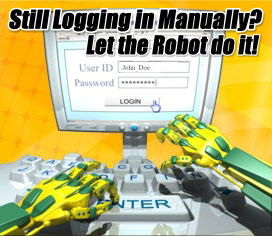
RoboForm makes logging into Web sites and filling forms faster, easier, and more secure. RoboForm memorizes and securely stores each user name and password the first time you log into a site, then automatically supplies them when you return. RoboForm's powerful Logins feature eliminates the manual steps of logging into any online account. With just one click RoboForm will navigate to a Web site, enter your username and password and click the submit button for you.

RoboForm 6.9 New Features
* Support Netscape 9.0 and Firefox 3 alpha.
* Fix Print List font size.
* Fix Assert in FrameManager:5408.
* Fix AutoLogoff on Standby, it was not always logging off.
* Fix position of current item in multi-page menu when showing next page.

You can reduce the time you spend filling out Web forms and logging onto subscription sites with RoboForm. This major update improves usability significantly and replaces the old, clunky auto fill window with a less-obtrusive tool bar. If you don't like the standard tool bar placement, you can run it at the bottom of the browser instead. That's the standard placement for Mozilla-based browsers. The program uses encryption algorithms such as Blowfish and AES to protect your data and includes a password generator. You can set up multiple identities with different credit-card numbers, passwords, and contact information. The trial limits the tab instances on each identity to three, but you can make plenty of identities.

To Visit Roboform Site Click here.

To download Roboform Software Click here.

Related Posting:
Password Management Software - RoboForm free edition.
Remember your usernames and passwords Use Sxipper Firefox extension


Wednesday, October 10, 2007

Password Management Software - RoboForm free edition

RoboForm: Learn more...

RoboForm is a password management software with Artificial Intelligence built in that can automatically fill online forms for you. It has been featured on The Wall Street Journal, CNN, The New York Times, Financial Times, PC Magazine, etc.

Nowadays we all have many usernames and passwords to use on the internet. Some spywares record your keystrokes and send them to the hackers. It has been reported many times that people lost all their money in online bank account or internet payment system account.

One of RoboForm key features is designed to combat this kind of key logger hacking. RoboForm can:

* AutoSave passwords in browser.
* AutoFill passwords to login form.
* Click Login button for you.
* Fill personal info into online forms.
* Save offline passwords & notes.
* Generate Secure Random Passwords.
* Encrypt passwords and personal info using 3-DES.
* All personal info is stored on your computer only.
* Put passwords on USB KeyChain for extra security.
* Sync your passwords and safenotes to a Palm.
* Backup & Restore, Print your passwords.

RoboForm works best with IE 5.0 and above. IE6 is the recommended browser to use with Artificial Intelligence RoboForm.

Note: free edition comes with some limitations.

To Visit Roboform Site Click here.
To download Roboform Software Click here.

Tuesday, June 12, 2007

10 Free Ways to Track All Your Passwords

With the proliferation of web services — there’s a new one out each day, it seems — it feels like we’re always creating new accounts, each with a different username and password.

The easy options — using the same password each time or writing them down on paper or in a spreadsheet — aren’t exactly the most secure. In fact, security experts strongly warn against these options as they leave you vulnerable to online theft.

So what’s a web surfer to do? If you’ve got more than a dozen services, you’re not going to remember all of them. It’s time to look into a password manager — and if you’re a cheapskate like me, you want a free one.

Let’s agree, from here on in, to stop using our dog’s name and birth date for our single password. Here are 10 free options for doing that:

Firefoxx or IE: Both popular browsers offer fairly secure ways of storing your username or passwords for different sites, once you enter them the first time. This is very handy, and can save a ton of time. Unfortunately, under certain conditions, the password could be lost, requiring you to enter the password again. And if you’ve been relying on the browser to remember the password, you’re out of luck. Also, this solution is only for online passwords, not for network or desktop passwords.
KeePass: One of the most popular password managers out there, KeePass is great because it’s open-source, free and cross-platform — available for Windows, Linux, OS X, and even mobile devices. It keeps all your passwords, online and off, in a secure database, so you only have to remember one master password. Be sure that master password is safe!
Clipperz: Unlike most password managers, this solution is online — so you can access it anywhere. And it stores more than passwords — credit card numbers, account numbers, anything really. Storing passwords and other confidential information online can make someplace nervous, but Clipperz uses an encryption method that means not even Clipperz knows what it’s storing. This is a good solution if you need access to your passwords from multiple computers, rather than just one or two.
OSX Keychain: If you use a Mac, you’re most likely familiar with Keychain, which comes with OSX. Basically, it’s a password manager that uses your OSX admin password as the master password.
KeyWallet: Windows only, this little utility sits in your system tray, and you just pull it up when you need to enter a password. As a utility, it is browswer-independent, which is ideal for some.
Password Manager Plus: The Billeo Free Password Manager Plus toolbar works with both Firefox and Internet Explorer, and allows you to store not only passwords but credit card numbers and online account information, and can autofill your information as you shop online or paying bills, for example.
Password Hasher: This Firefox extension generates strong passwords for you by scrambling your master password with the site’s name. The passwords generated by this extension are better than any you could come up with yourself.
PasswordSafe: This free online service works on any modern web browser, for any OS, and a desktop version is available for Windows or Mac. Basically, it uses an encrypted safe to store your passwords, along with other information including software keys, website logins, pin numbers, email logins and more.
Password generator: This is a little bookmarklet that combines your master password with the site’s name to create a stronger password, and one that is different for each site. Very handy and simple.
Algorithm: The best solution may not even be a technology solution — remembering strong passwords could be as simple as coming up with a way to change a base password using the name of the online service you’re logging into. For example, if you come up with a base password of “xlg519″ (based on your partner’s initials and your cat’s birthday), you can add the first two and last two letters of a service’s name (”amon” for Amazon) and you’ve got your password!

Some notes on passwords:


Never give out your master password if you use a password manager. Be sure you never forget it.
Don’t write passwords on a little piece of paper and stick it in your drawer. If it gets stolen, you only have yourself to blame.
Password managers may not be safe on a shared computer — it is probably best to only install them on a computer that only you use.
Using common information for your password is not secure — such as your birthday, initials, kids’ birthdays, names, etc. And no, “password” is not a safe password.
Using the same password for everything is a bad idea, because once that password is discovered, a thief has access to all your accounts.
Source: Lifehack.org

Recent Comments